You can:
- build clips from individual sprites or a sprite sheet
- add events to exact frames
- create animation controllers with named states
- switch states with bool, int, float, trigger, and
On Completeconditions - preview the result in the editor before wiring full gameplay code
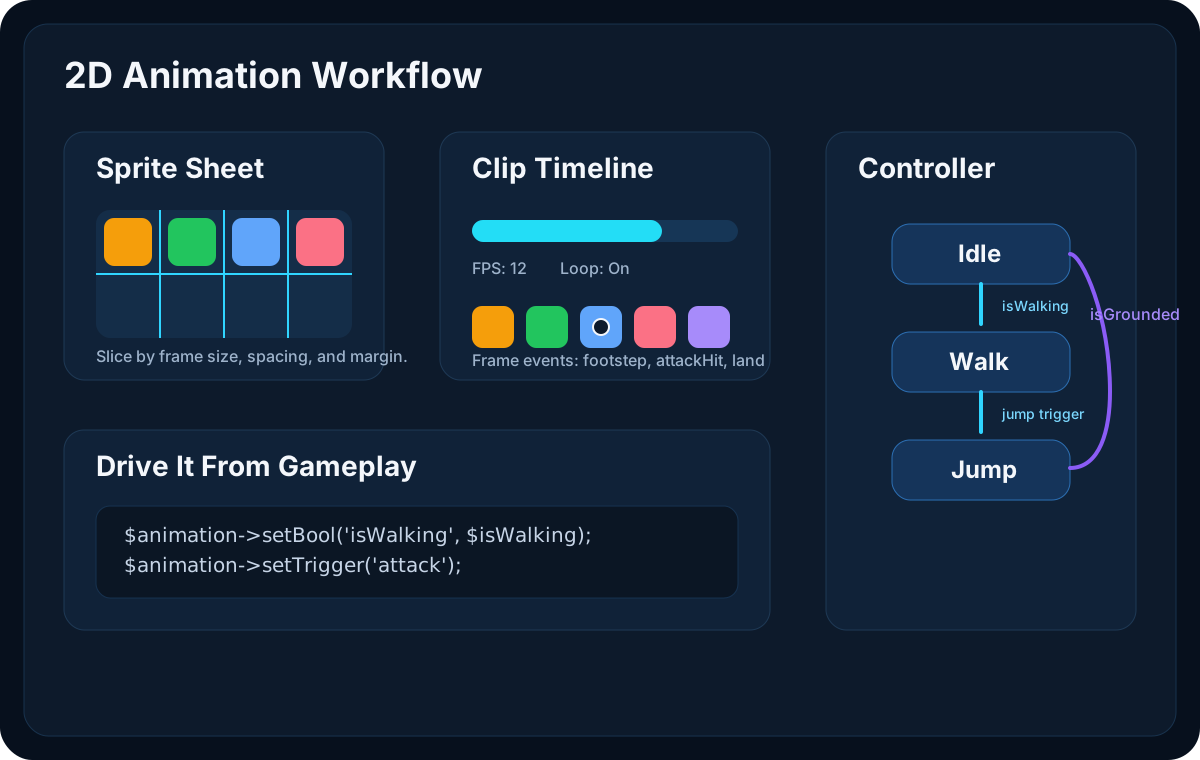
Start With a Clip
Create an Animation Clip from the Assets panel, then open it in the Animator window.
Use a clip when you want a single sequence such as:
- idle
- walk
- jump
- torch flame
- coin spin
Typical clip setup:
- create the
.animasset - add frames manually or slice them from a sheet
- set
FPS - enable or disable looping
- preview the clip immediately
Build Frames From a Sprite Sheet
If your art tool exports one sheet, you do not need to split it by hand before bringing it into Lenga.
In the Animator:
- choose the sprite sheet
- set the frame width and height
- set margin and spacing if the export uses padding
- generate the frame list
That is especially good for large action sets where each animation arrives as a sheet.
Idle sheet  -> slice -> save as KnightIdle.anim
Walk sheet  -> slice -> save as KnightWalk.anim
Jump sheet  -> slice -> save as KnightJump.anim
Add Animation Events to the Exact Frame
Events let the animation timeline tell gameplay when something meaningful happened.
Good event names are short and specific:
footstepattackHitdrawSwordlandspawnDust
Example event data inside a clip:
{
  "frame": 5,
  "name": "attackHit"
}
And the matching gameplay hook:
public function onAnimationEvent(string $eventName): void
{
    if ($eventName === 'footstep') {
        // play a footstep sound
    }

    if ($eventName === 'attackHit') {
        // enable damage, spawn particles, or shake the camera
    }
}
Create a Controller When the Object Has Multiple States
Clips are great for one animation. Controllers are better when a GameObject needs to move between many animations in response to gameplay.
Common controller states:
IdleWalkJumpFallAttackHit
Set one state as the default, then add transitions between them.
Understand How Lenga Transitions Work
Before you start clicking around in the Animator, it helps to know the exact transition model Lenga uses.
A transition in Lenga is:
- one-way
- owned by one source state
- evaluated only from the current state
- driven by one or more conditions
That means:
Idle -> Walkdoes not automatically createWalk -> Idle- a state with no outgoing transitions will stay there
- all conditions inside one transition must pass before that transition can fire
- if two transitions from the same state can both match, the first matching transition wins
This is the most important mental model to keep in mind while you author a controller.
Bool vs Int vs Float vs Trigger vs On Complete
Lenga supports five useful transition styles.
Bool
Use a bool for a condition that stays true until gameplay changes it.
Examples:
isWalkingisGroundedisAiming
Bool transitions use:
IfIf Not
Int
Use an int when the controller should react to a numbered gameplay state.
Examples:
comboStepweaponIndexstanceLevel
Int transitions use:
GreaterGreater Or EqualLessLess Or EqualEqualsNot Equal
Float
Use a float when animation should respond to a continuously changing value.
Examples:
speedverticalSpeedaimWeight
Float transitions use:
GreaterGreater Or EqualLessLess Or EqualEqualsNot Equal
Trigger
Use a trigger for one-shot moments.
Examples:
attacktakeHitdie
On Complete
Use On Complete when you want a non-looping clip to move to another state after it finishes.
Examples:
AttackLight -> IdleHit -> IdleLand -> Idle
On Complete only makes sense for clips that do not loop. If the clip loops forever, it never completes, so the transition will never fire.
Step-by-Step: Build a Working Controller
This walkthrough uses a simple character with Idle, Walk, Run, and AttackLight.
1. Create the clips first
Make sure you already have .anim clips for the motions you want to use.
Example:
KnightIdle.animKnightWalk.animKnightRun.animKnightAttackLight.anim
2. Create or open a .controller asset
Select the controller asset and open it in the Animator tab.
If you only look at the Inspector, you will only see a summary. The full transition editor lives in the Animator tab.
3. Add parameters
Use the Parameters section first.
For this example:
- add a bool named
isWalking - add a bool named
isRunning - add a float named
speed - add an int named
comboStep - add a trigger named
lightAttack
Use bools for stable conditions, ints for discrete steps, floats for continuously changing values, and triggers for one-shot actions.
4. Add states
In the States section:
- click
+ - name the state
- assign its clip
- repeat for each state you need
For this example:
Idle->KnightIdle.animWalk->KnightWalk.animDash->KnightRun.animAttack Light->KnightAttackLight.anim
5. Set the default state
Mark the state you want the controller to start in.
For most characters, that will be Idle.
6. Select the source state you want to edit
This is the part many people miss the first time.
In the States section, click the state card whose outgoing transitions you want to edit.
The Outgoing Transitions section below does not edit the whole controller at once. It only edits transitions leaving the currently selected state card.
The selected state card is highlighted, and the Outgoing Transitions header shows the current source state.
7. Add transitions for that selected state
With the source state selected:
- go to
Outgoing Transitions - click
+ - choose the target state in
To - add one or more condition rows
- choose the condition in
When - set the expected value when the condition uses a bool, int, or float
If a transition has multiple conditions, all of them must match.
For Idle, add:
Idle -> WalkwhenisWalking IfIdle -> DashwhenisRunning IfIdle -> Dashwhenspeed Greater 6.0Idle -> Attack LightwhenlightAttack Fire
8. Repeat for the other source states
Now click Walk and author its outgoing transitions.
For Walk, add:
Walk -> DashwhenisRunning IfWalk -> IdlewhenisWalking If NotWalk -> Attack LightwhenlightAttack Fire
Then click Dash and add:
Dash -> WalkwhenisWalking IfDash -> IdlewhenisRunning If NotDash -> Attack LightwhenlightAttack Fire
If you prefer one movement parameter instead of multiple bools, you can also author a controller around a single float such as speed:
Idle -> Walkwhenspeed Greater 0.1Walk -> Dashwhenspeed Greater 6.0Dash -> Walkwhenspeed Less 6.0Walk -> Idlewhenspeed Less 0.1
9. Use On Complete for one-shot states
Now click the Attack Light state card.
If the attack clip is a one-shot animation, make sure the clip itself has Loop turned off.
Then add:
Attack Light -> IdlewhenOn Complete
That gives you a clean way back into locomotion after the attack animation finishes.
A Complete Example Flow
This setup gives a solid starting point:
Idle -> WalkwhenisWalking IfIdle -> DashwhenisRunning IfIdle -> Attack LightwhenlightAttack FireWalk -> DashwhenisRunning IfWalk -> IdlewhenisWalking If NotWalk -> Attack LightwhenlightAttack FireDash -> WalkwhenisWalking IfDash -> IdlewhenisRunning If NotDash -> Attack LightwhenlightAttack FireAttack Light -> IdlewhenOn Complete
Assign the Animation to a GameObject
Add Sprite Animation to the same GameObject that already has a Sprite Renderer.
You can author it in one of two ways:
- assign a single
clipPath - assign a
controllerPathand let the controller choose the current clip
Typical player setup:
Player
  Transform
  Sprite Renderer
  Rigidbody2D
  BoxCollider2D
  Sprite Animation
  Behaviour (PlayerController)
Drive the Controller From PHP
Once the assets are in place, gameplay code only needs to express intent.
Simple movement example:
use Lenga\Engine\Core\Input;
use Lenga\Engine\Core\SpriteAnimation;
use Lenga\Engine\Core\SpriteRenderer;

$animation = $gameObject->getComponent(SpriteAnimation::class);
$sprite = $gameObject->getComponent(SpriteRenderer::class);

$move = Input::getAxis('Horizontal');
$isWalking = abs($move) > 0.05;
$speed = abs($move) * 8.0;

$animation?->setBool('isWalking', $isWalking);
$animation?->setBool('isRunning', $speed > 6.0);
$animation?->setFloat('speed', $speed);

if ($move < 0.0) {
    $sprite?->flipX = true;
} elseif ($move > 0.0) {
    $sprite?->flipX = false;
}
One-shot action example:
if (Input::getButtonDown('Jump')) {
    $animation?->setTrigger('jump');
}

if (Input::getButtonDown('Attack')) {
    $animation?->setTrigger('lightAttack');
}
Integer-driven example:
$comboStep = 0;

if (Input::getButtonDown('Attack')) {
    $comboStep++;
    $animation?->setInt('comboStep', $comboStep);
    $animation?->setTrigger('lightAttack');
}
Preview Before You Write More Code
The editor preview is valuable because it lets you answer questions early:
- are the transitions named clearly?
- does the default state make sense?
- do the parameters drive the right clips?
- are the frame events on the right frames?
Use the preview controls to toggle bools, type exact Int and Float values, and fire triggers before you touch the full gameplay script.
The preview is designed to let you test controller logic, not just clip playback:
- if the preview is already playing, changing a parameter, firing a trigger, or switching preview state keeps the preview running
- if the preview is stopped, changing a parameter updates the selected state without automatically pressing play for you
That makes it easier to test transitions without constantly restarting playback.
Common Gotchas
These are the places people most often get stuck.
1. Editing the wrong source state
If a transition is not doing what you expect, first confirm that you clicked the correct state card before editing the Outgoing Transitions list.
2. Forgetting the return transition
Transitions are one-way.
If you add:
Idle -> Walk
you still need:
Walk -> Idle
3. Using On Complete on a looping clip
If the clip loops, it never completes.
For attacks, hit reactions, and similar one-shot states, turn looping off in the clip asset first.
4. Creating overlapping conditions from the same state
If more than one transition could match from the current state, the first matching transition wins.
That means transition order matters.
If you need a transition to be more specific, prefer adding more conditions to the same transition instead of creating several overlapping transitions that all point to the same destination.
5. Mismatched names between code and controller
Parameter names in PHP must match the controller exactly.
For example:
$animation?->setTrigger('lightAttack');will not match a controller parameter named Light Attack.
6. Expecting controller editing from the Inspector
The Inspector shows a summary for .controller assets.
The actual controller authoring workflow lives in the Animator tab.
Tips for Cleaner Animation Data
These habits make clips and controllers easier to maintain:
- Keep clip names literal:
KnightIdle,KnightWalk,KnightJump. - Keep controller parameter names intent-based:
isWalking,speed,comboStep,lightAttack. - Use frame events for timing, not for whole gameplay systems.
- Let the controller own visual transitions; let gameplay code own intent.
This workflow is especially effective for practical, state-driven 2D animation where gameplay code supplies clear intent and the controller owns the visual transitions.