This guide covers the basic object-placement workflow in the Scene view.
If the words Position, Rotation, Scale, local space, or world space still feel fuzzy, read What Is a Transform? first. This page assumes you know that a Transform is the placement data on a GameObject.
Step 1: Select the Object
Select the object in the Hierarchy or click it in the Scene view.
Once selected, the transform gizmo appears in the Scene view.
Step 2: Use the Transform Tools
Use the transform tools in the top toolbar to change the selected object.
You will use these tools most often:
-
Moveto change position -
Rotateto change orientation -
Scaleto change size
These tools affect the selected object directly in the scene.
Step 3: Watch the Inspector While You Work
The Inspector updates while you move, rotate, and scale content.
That gives you two ways to work:
- drag visually in the
Sceneview - type exact values in the
Inspector
Use whichever is better for the adjustment you are making.
The Transform component also has a menu for common editing actions.
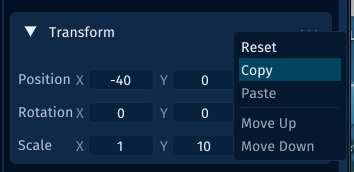
Use this menu when you need to:
Reseta Transform back to its default valuesCopyTransform values from one objectPastecopied Transform values onto another object when paste is available
Step 4: Use the Grid When Precision Matters
If you want clean spacing or tile-friendly placement, use the scene grid and the Snap controls.
That keeps movement predictable and makes it much easier to line up content.
A Good Beginner Rhythm
When you are placing scene objects, this rhythm works well:
- select the object
- move it into a rough position
- check the
Inspectorfor exact values - turn on
Snapif alignment matters - save the scene once the placement feels right