Every GameObject has one. You do not add it like an optional component, because a GameObject needs a Transform to have a position in the scene.
The Three Core Values
A Transform stores:
Position: where the object isRotation: which way the object is turnedScale: how large the object is
Those are the values you edit when you move, rotate, or resize a GameObject in the Scene view or Inspector.
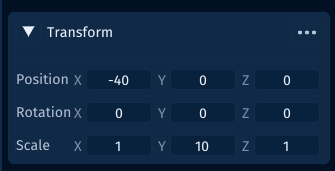
Each row has X, Y, and Z fields:
Xmoves or scales left and rightYmoves or scales up and downZis used for depth in 3D scenes and ordering-style placement in some 2D workflows
In 2D work, you will often change Position X, Position Y, Rotation Z, and Scale X/Y most often.
Local Space and World Space
Transforms are easier to understand once you know there are two spaces.
World space means the final position, rotation, and scale in the scene.
Local space means the position, rotation, and scale relative to the object's parent.
If a GameObject has no parent, local space and world space often feel the same. If it has a parent, the parent affects the child.
For example:
- moving a parent moves its children
- rotating a parent rotates its children around that parent
- scaling a parent can make children appear larger or smaller
That is why hierarchy and Transform values are connected.
Transforms Are Not Physics
A Transform describes placement. It does not automatically mean the object is using physics.
For simple authored placement, editing the Transform is enough.
For physics-driven movement, a Rigidbody usually owns the motion, and colliders define what can touch or block the object.
That separation matters because directly moving a Transform every frame can bypass the assumptions a physics body is trying to maintain.
Transforms and UI
GameObjects use Transform.
UIElements use RectTransform.
Both describe placement, but they solve different problems. A Transform places scene objects in world space. A RectTransform lays out UI inside a canvas using anchors, pivots, size, and screen-relative positioning.