This guide is written for first-time users. By the end, you will know how to:
- create a
Tilesetasset - slice a platform sheet into tiles
- create a
Tilemapin the scene - paint and erase tiles in the Scene view
- place a selected tile as a snapped sprite object
- understand what Lenga saves for you behind the scenes
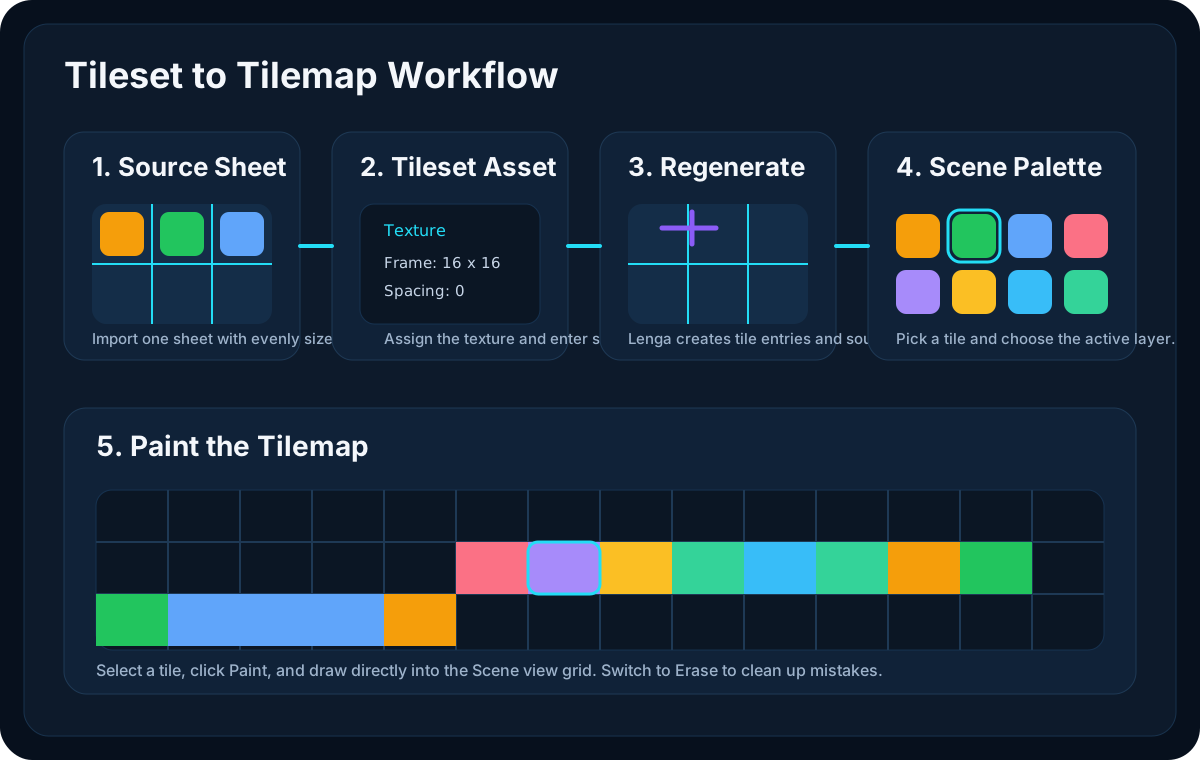
What You Need Before You Start
You only need two things:
- a
2Dproject - a sprite sheet that contains grid-friendly tile pieces
A good beginner tileset has:
- one consistent tile size such as
16x16,24x24, or32x32 - even padding, if any
- all pieces facing the same way
- obvious corners, edges, and fill pieces
Think in terms of one tile cell at a time. Each grass edge, dirt fill, ledge cap, wall piece, or decorative variant should fit inside the same tile width and height.
The Workflow at a Glance
The beginner loop is:
Import sprite sheet
  -> Create Tileset asset
  -> Assign texture
  -> Enter slice settings
  -> Regenerate tiles
  -> Create Tilemap object
  -> Assign tileset to the Tilemap
  -> Paint in the Scene view
That is the whole mental model. If something feels broken, the issue is usually one of these:
- the tileset has no source texture
- the slice settings are wrong
- the Tilemap has no tileset assigned
- the wrong tilemap layer is active
Before you start painting seriously, it is also worth checking the Scene Grid and Snap controls so your visible grid and transform snap match your tile size. See Use the Scene Grid and Snap Controls.
Step 1: Import the Sprite Sheet
Drag your sprite sheet into the Assets panel or use the asset import flow.
Put it somewhere that will still make sense as the project grows, for example:
Assets/
  Sprites/
    Tiles/
      platformer_terrain.png
If you are organizing a bigger project, it is a good idea to keep tile textures and tileset assets separate:
Assets/
  Sprites/
    Tiles/
  Tilesets/
That way, the texture stays the raw art source while the .tileset.json file becomes the authored slicing metadata.
Step 2: Create a Tileset Asset
In the Assets panel:
- navigate to the folder where you want the asset to live
- create a new
Tilesetasset - give it a clear name such as
PlatformerTerrain
A good result looks like this:
Assets/
  Tilesets/
    PlatformerTerrain.tileset.json
Select that new asset so it opens in the Inspector.
Step 3: Assign the Source Texture
With the tileset selected, look for the Texture field in the Inspector.
Assign the sprite sheet you imported in step 1.
You can do that by:
- choosing it from the asset picker
- dragging the texture onto the field
Once the texture is assigned, the preview area should show the sheet image.
Step 4: Enter the Slice Settings
Now tell Lenga how to divide the sheet.
The key fields are:
Frame WidthFrame HeightMargin XMargin YSpacing XSpacing Y
For a sheet where every tile is exactly 16x16 with no padding, the settings are simply:
Frame Width: 16
Frame Height: 16
Margin X: 0
Margin Y: 0
Spacing X: 0
Spacing Y: 0
If your art tool exported padding between tiles, fill in the margin and spacing fields to match.
The fastest way to reason about them is:
Margin= empty border around the outside of the sheetSpacing= empty gap between cells inside the sheet
Step 5: Regenerate the Tiles
Click Regenerate Tiles.
Lenga will:
- walk the sheet in fixed-size steps
- create tile entries for each slice
- update each tile's
sourceRect - keep stable tile ids when it can
If the slice settings are correct, the preview grid should line up exactly with the visual pieces on the sprite sheet.
If the grid is drifting, offset, or cutting across pieces:
- check
Frame WidthandFrame Heightfirst - then verify
Margin - then verify
Spacing
This is the most important checkpoint in the whole workflow. If the slicing is wrong here, painting will feel wrong too.
Step 6: Mark Solid Tiles for Collision
Still in the Tileset Inspector, scroll to Tile Metadata.
Each generated tile has:
- a stable tile id, such as
r00c02 - an editable display name
- a
Collisiondropdown
Use Collision to describe what the tile means for physics:
Nonemeans the tile is visual onlySolidmeans the tile can generate collision when painted on a collision-enabled tilemap layer
For a platformer tileset, mark ground, wall, and ledge tiles as Solid. Leave flowers, bushes, background rocks, and other decoration tiles as None.
This setting lives on the tileset asset. You only need to set it once, and every tilemap that uses that tileset can reuse the same collision intent.
Step 7: Create a Tilemap in the Scene
Now switch from the asset workflow to the scene workflow.
You can create it in either of these editor flows:
GameObject -> 2D Object -> Tilemap- right-click the
Hierarchyand chooseCreate -> 2D Object -> Tilemap
If you already have a level object selected, you can also add it through:
Component -> 2D -> Rendering -> Tilemap
A simple hierarchy is enough:
Level Geometry
  Transform
  Tilemap
For a bigger scene, you might split this up:
Background Tiles
  Transform
  Tilemap

Ground Tiles
  Transform
  Tilemap

Foreground Details
  Transform
  Tilemap
That is often cleaner than trying to push several very different visual layers into one object.
Step 8: Assign the Tileset to the Tilemap
Select the Tilemap object in the Hierarchy and fill in the Tilemap fields in the Inspector:
TilesetCell SizeSorting LayerOrder In Layer
The most important values at this stage are Tileset and Cell Size.
For beginners, Cell Size should usually match the intended world size of one tile. If your project treats one grid cell as one world unit, keep it simple:
Cell Size X: 1
Cell Size Y: 1
If your art should occupy a different world footprint, change the cell size here instead of resizing every tile by hand.
Step 9: Paint in the Scene View
With the Tilemap selected, the Scene view exposes the tile authoring overlay.
You should now see:
- a tile palette
- a layer selector
- a
Painttool - an
Erasetool - a
Recttool - a
Picktool
The typical loop is:
- click a tile in the palette
- switch to
Paintif it is not already active - click or drag across the grid in the Scene view
Lenga paints directly into the selected tilemap layer.
If you make a mistake:
- switch to
Erase - click or drag over the painted cells you want to remove
While you move the mouse, Lenga also shows the hovered cell outline so you can see exactly where the next tile will land.
Step 10: Use Pick and Rect When You Need Speed
Once basic painting feels comfortable, two tools make level building faster:
Pick: click an already painted tile in the scene to make it the active tile in the paletteRect: drag out a rectangle and fill the whole area with the selected tile
Pick is useful when you are working from an existing patch of level art and want to sample what is already there instead of hunting for it in the palette.
Rect is useful for:
- laying down large floors quickly
- blocking out walls
- filling broad interior regions with a repeated dirt, stone, or platform tile
For a beginner workflow, the common pattern is:
- use
Paintfor corners and edges - use
Rectfor bigger repeated areas - use
Pickwhenever you want to sample from the scene instead of the palette
Step 11: Work One Layer at a Time
If your tilemap has more than one layer, use the layer dropdown in the Scene overlay before painting.
That lets you keep different kinds of layout separate, for example:
GroundDecorForeground
For a first level, keep it simple and start with one layer until the grid and scale feel right.
Once that works, add more separation for readability.
Step 12: Place a Tile as a Normal Sprite
Sometimes you want to use the tileset as a grid-snapped parts palette rather than paint directly into the tilemap.
That is what Place Sprite is for.
With the same Tilemap selected in the Scene view:
- click the tile you want in the palette
- switch to
Place Sprite - click the grid cell where you want that tile to land
Lenga will create a normal GameObject with a SpriteRenderer for you.
The created sprite:
- uses the tileset texture
- stores the tile's
sourceRect - sizes itself to the active tilemap
Cell Size - lands snapped to the same grid you paint on
This is useful for:
- one-off decorative props
- interactive pieces that should stay separate from the tilemap
- scene dressing that still wants strict grid placement
Step 13: Turn Painted Tiles into Collision
Lenga generates tile collision from two pieces of authored data:
- the tile's own
collisionvalue in theTileset - the layer's
collisiontoggle in theTilemap
For collision to exist, both need to agree:
Tile collision: Solid
Tilemap layer collision: enabled
That means a common beginner workflow is:
- mark ground and wall tiles as
Solidin the tileset metadata - keep your
Groundtilemap layer collision-enabled - keep decorative layers such as
DecororForegroundcollision-disabled
Lenga merges neighboring solid cells into larger physics rectangles automatically, so you do not need to hand-place blocker colliders for a normal tilemap floor.
Step 14: Save the Scene
When you save the scene, Lenga stores sparse tile data for the painted cells.
Under the hood, a tilemap component looks roughly like this:
{
  "type": "Tilemap",
  "tilesetPath": "Assets/Tilesets/PlatformerTerrain.tileset.json",
  "cellSize": { "x": 1.0, "y": 1.0 },
  "sortingLayer": "Default",
  "orderInLayer": 0,
  "layers": [
    {
      "id": "ground",
      "name": "Ground",
      "visible": true,
      "collision": true,
      "orderOffset": 0,
      "tiles": [
        { "x": 0, "y": 0, "tileId": "r00c00" },
        { "x": 1, "y": 0, "tileId": "r00c01" }
      ]
    }
  ]
}
And the tileset asset it depends on looks roughly like this:
{
  "tileset": {
    "name": "Platformer Terrain",
    "version": 1
  },
  "texturePath": "Assets/Sprites/Tiles/platformer_terrain.png",
  "slice": {
    "frameWidth": 16,
    "frameHeight": 16,
    "marginX": 0,
    "marginY": 0,
    "spacingX": 0,
    "spacingY": 0
  },
  "tiles": [
    {
      "id": "r00c00",
      "name": "GrassTopLeft",
      "sourceRect": { "x": 0, "y": 0, "width": 16, "height": 16 },
      "collision": "Solid"
    }
  ]
}
You do not need to edit that JSON by hand for the normal workflow, but understanding it makes the system feel much less mysterious.
A Good First Exercise
If you want to practice without overthinking it, build this:
- a flat platform that is 12 tiles wide
- a short raised ledge on the right
- one decorative top edge
- a small gap that the player can jump over
That is enough to validate:
- your slice settings
- your cell size
- your painting workflow
- your visual scale
If those feel right, you are ready to start blocking out real level geometry.
What This Workflow Supports
Lenga's tilemap workflow supports the common platformer level-building loop:
- fixed-grid tileset slicing from one source texture
- tile metadata for names and simple
None/Solidcollision - painting and erasing tiles in the Scene view
- rectangle painting for larger floors and walls
- flood fill within the current authored tilemap bounds
- picking an existing painted tile from the scene
- placing a tile as a snapped sprite object
- multiple tilemap layers with visibility, draw order, and collision toggles
- collision generation from solid tiles on collision-enabled layers
Limits to keep in mind:
- fill works within the current authored bounds of the active tilemap layer, not across an infinite empty map
- line, stamp, and pattern brushes are not there yet
That means the best current use is:
- hand-painting level layout
- filling holes or replacing contiguous regions inside an existing blockout
- placing one-off tiles as snapped sprites
- building collision-ready terrain from solid tiles
- validating scale
- building a simple 2D scene quickly
Troubleshooting
The palette is empty
Check these in order:
- the Tilemap has a
Tilesetassigned - the tileset has a valid
Texture - you clicked
Regenerate Tiles
The wrong part of the sheet is being painted
Your slice settings are probably wrong.
Check:
- frame width
- frame height
- margin
- spacing
Painting does nothing
Make sure:
- the Tilemap object is selected
- a tile is selected in the palette
Paintis active- a valid layer is selected
My tiles look too big or too small in the scene
Your Cell Size is the first thing to inspect.
Do not try to solve this by changing the slice settings unless the grid itself is wrong. The slice settings describe how to cut the texture. Cell Size describes how large each painted tile should be in the world.
Where to Go Next
After you are comfortable with the tileset tool, the next useful docs are:
Those are the pieces that turn a painted level into a playable scene.