This matters most when you are:
- laying out tile-based levels
- placing sprites on clean intervals
- aligning 3D props and collision
- rotating or scaling objects in predictable steps
Where to Find It
In the Scene toolbar:
-
Snapturns transform snapping on or off -
Gridopens the grid and snap settings for the current Scene mode
The Scene mode matters:
- in
2D, the grid uses the2Dspacing values - in
Perspective, the grid uses the3Dspacing values
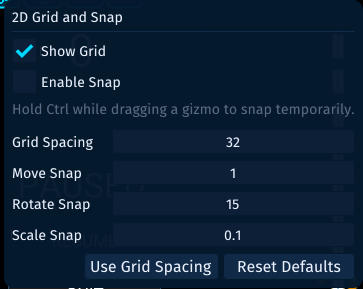
What You Can Change
The Grid popup controls:
- whether the Scene grid is visible
- grid spacing
- move snap increment
- rotate snap increment
- scale snap increment
If you want move snapping to match the visible grid exactly, use Use Grid Spacing. In the screenshot above, that would copy the Grid Spacing value into Move Snap.
Temporary Snap
Even when Snap is off, you can still hold Ctrl while dragging a gizmo to snap temporarily.
That gives you a quick way to line things up without leaving snapping enabled all the time.
Suggested Starting Values
For 2D tile-based work, a good starting point is often:
Grid Spacing: 32
Move Snap: 32
Rotate Snap: 15
Scale Snap: 0.1
For general 3D scene layout, a good starting point is often:
Grid Spacing: 1
Move Snap: 1
Rotate Snap: 15
Scale Snap: 0.1
Adjust these to match the authored scale of your project.
Recommended Tilemap Workflow
When building a tilemap-driven level:
- set the
2Dgrid spacing to match your tile size - set
Move Snapto the same value - paint tiles into the tilemap
- use
Place Spritewhen you want a selected tile to become a normal scene object
That keeps tilemaps and tile-derived sprite placement aligned to the same authored rhythm.
If you are laying out canvas UI instead of world objects, use the UI anchor workflow instead. See Lay Out UI with Anchors, Buttons, and Parenting.