Hierarchyto choose what is in the sceneInspectorto edit what is selectedAssetsto find or create the files that support that work
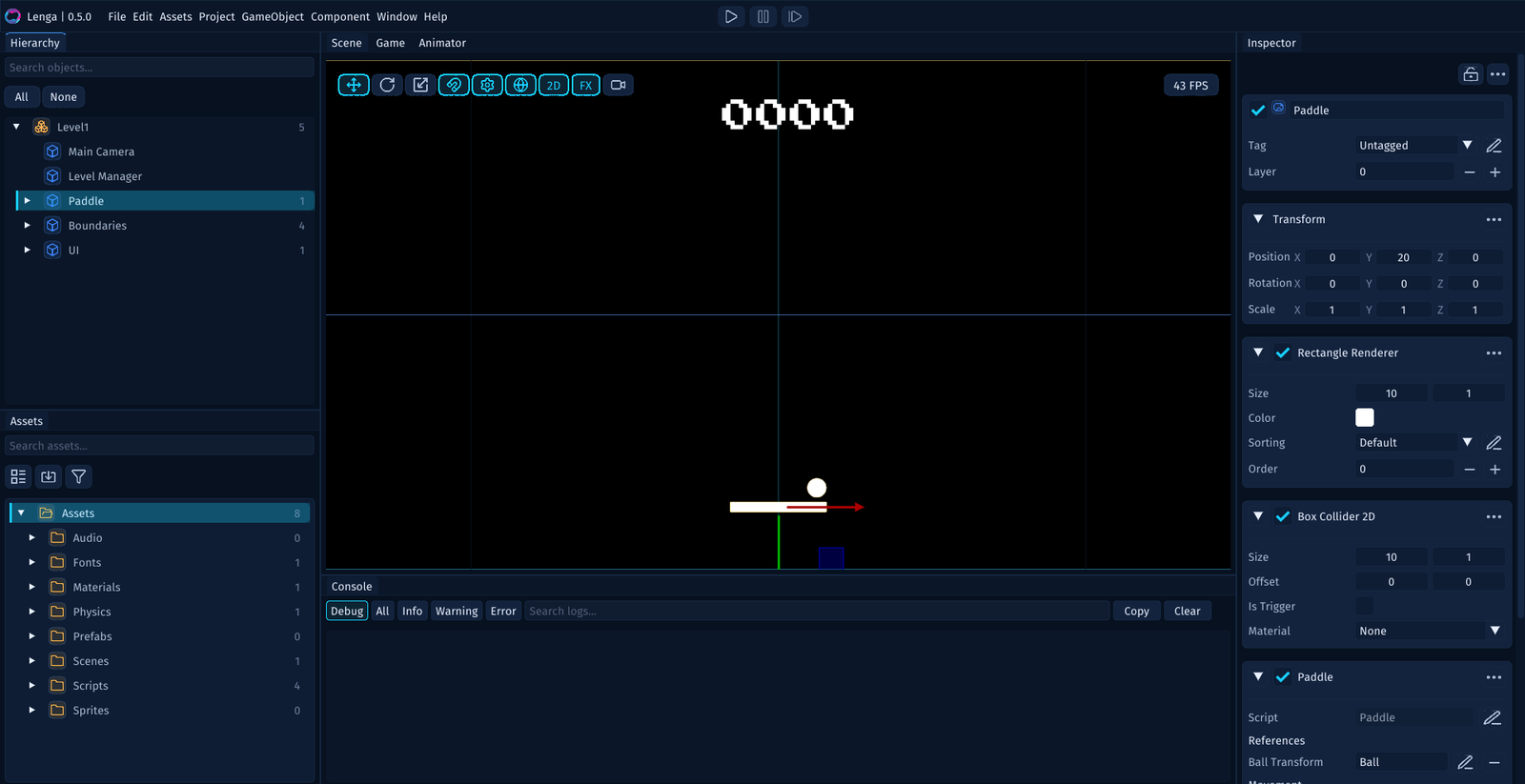
Start in the Hierarchy
Use the Hierarchy when you want to answer a simple question: what is in this scene right now?
Click an item in the Hierarchy to select it.
That selection becomes the focus of the rest of the editor.
To select a range, click the first item, hold Shift, then click the last item. Lenga selects everything between those two items in the visible Hierarchy or Assets panel.
Read the Inspector After You Select Something
When the selection changes, the Inspector changes too.
This is where you:
- read the selected object's current values
- edit components and properties
- add components or behaviours
- assign assets such as fonts, sprites, and materials
The Inspector is where precise editing happens.
Use the Assets Panel for Project Files
The Assets panel is your project browser.
Use it when you need to:
- find a scene, script, sprite, font, or prefab
- create a new asset
- drag a file onto an object or field
- organize the project into folders that make sense
The Assets panel is about project content. The Hierarchy is about scene content.
A Simple Editing Loop
This is the most common day-to-day loop in the editor:
- select something in the
Hierarchy - inspect and edit it in the
Inspector - grab the supporting asset from the
Assetspanel if needed - return to the
Sceneview and check the result
Once this loop feels natural, the rest of the editor becomes much easier to reason about.
A Practical Example
Suppose you want to change a score label.
You would normally:
- select the text element in the
Hierarchy - change its text settings in the
Inspector - choose a font from the
Assetspanel if you want a different look - check the result in the
SceneorGameview
That is the pattern you will use again and again while building a project.