Start with a scene that has a camera and a bright object against a darker background. In the example, the pale cyan ring and the white center are the bright objects. A white sprite in a 2D scene or an emissive material on a 3D object works too.
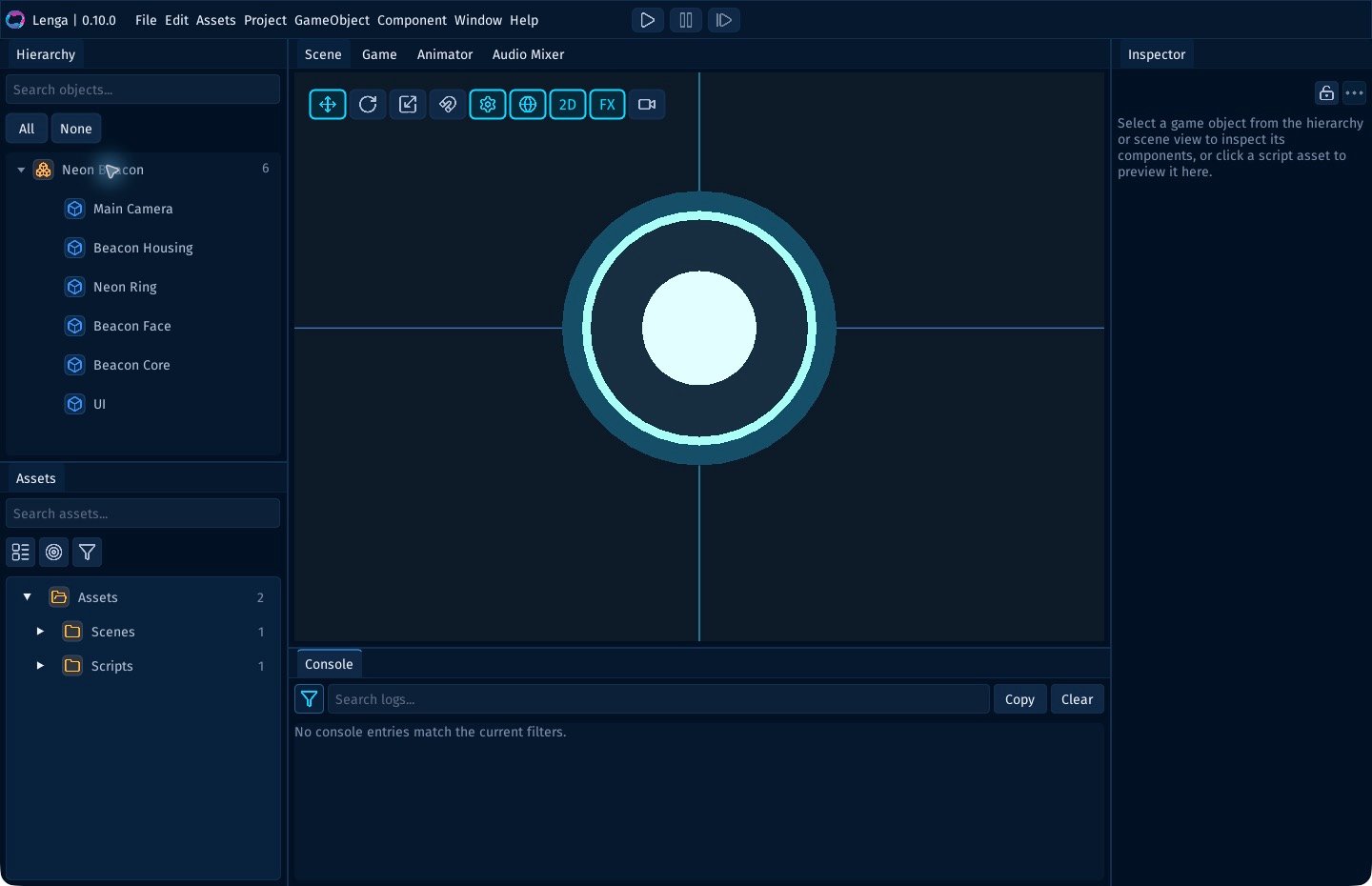
1. Create a Profile
- In Assets, right-click a folder or an empty area of the panel.
- Choose Create > Post Processing Profile.
- Enter Neon Glow for the Name and click Create.
The profile appears in Assets. Select it to see its effects in the Inspector.
2. Assign It to the Scene
- In Hierarchy, click the top row with the scene's name. In the example, that row is Neon Beacon.
- In the Inspector, expand Backdrop.
- Click Post Processing, then select Neon Glow. You can also drag Neon Glow from Assets onto this field.
- Choose File > Save to save the scene's profile assignment.
3. Turn On Bloom
Select Neon Glow in Assets again. Check the box beside Bloom, then click the arrow or the name to reveal its settings.
| Setting | Start with | What to look for |
|---|---|---|
| Threshold | 0.65 |
Lower it to let more colors glow. Raise it if the background starts to glow. |
| Intensity | 1.20 |
Increase it until you can see a halo around the bright object. Lower it if the glow washes out detail. |
| Scatter | 0.70 |
Raise it for a wider halo or lower it for a tighter glow. |
The profile saves as you edit it. Toggle the Bloom checkbox off and on to compare. Look for light spilling past the edge of the bright object while the dark background stays mostly dark.
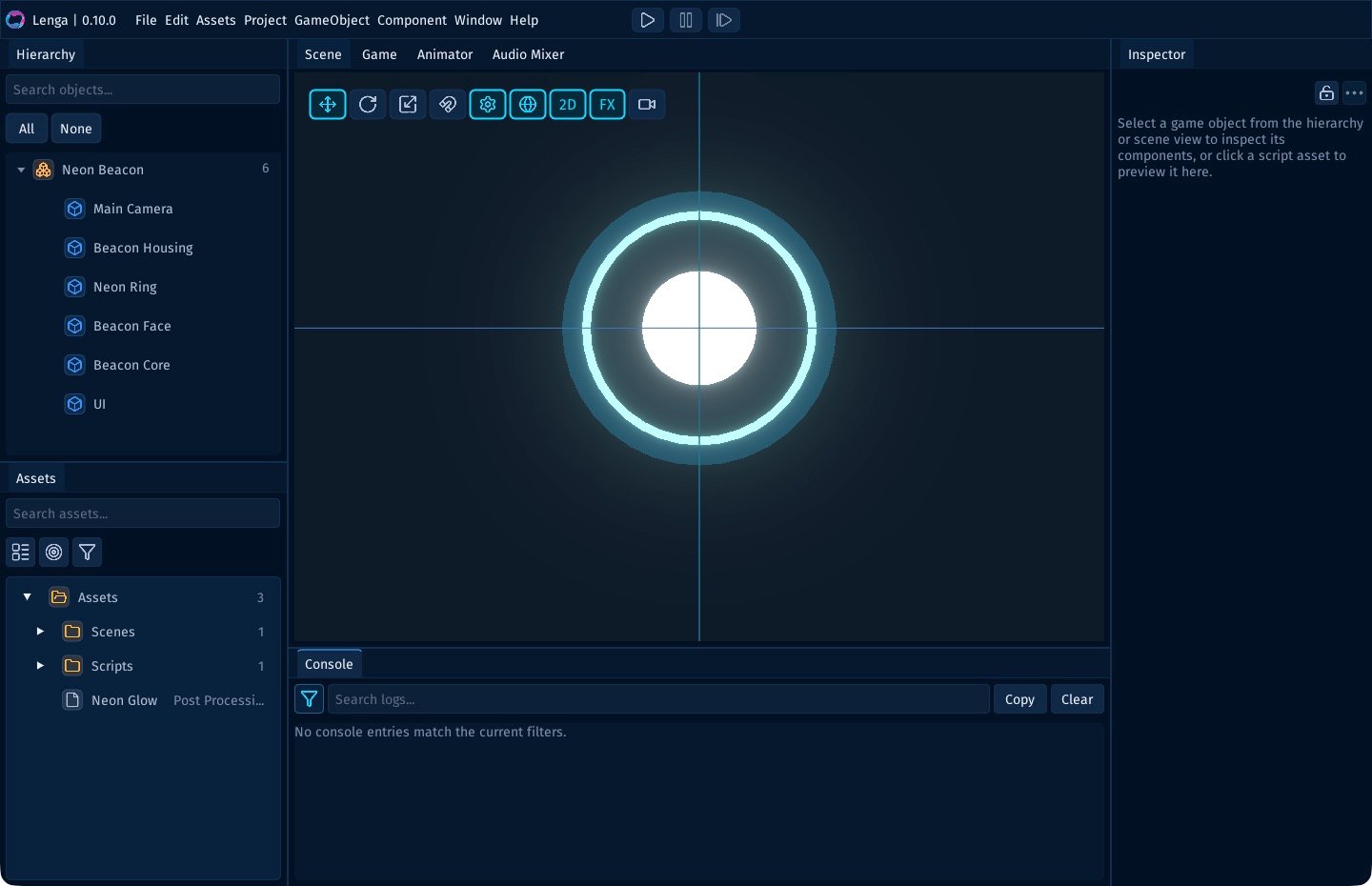
4. Check the Game Camera
- Select the camera that shows the scene, usually Main Camera.
- In its Camera component, make sure Post Processing is checked.
- Open Game to compare the camera view. Press Play to see how the glow looks during gameplay. Stop and restart Play after editing a profile to see the changes in a running game.
The effect changes the world behind your HUD. Text and buttons on a screen-space canvas stay sharp.
If You Do Not See a Glow
- Confirm that Backdrop > Post Processing on the scene points to Neon Glow.
- Confirm Bloom is checked and Intensity is above zero.
- Lower Threshold or brighten the object. If too much of the scene glows, raise Threshold again.
- If the Scene view shows the glow but the Game view does not, check Post Processing on the camera the game uses.
To clear all of this profile's effects from the scene, set Backdrop > Post Processing to None and save the scene. The profile remains in Assets so you can use it again.
Next Steps
- Try Vignette with an Intensity of
0.25to darken the edges and draw attention to the center. - Explore more settings in the effects reference.
- Create a temporary screen effect from a gameplay script.
- See Fix post-processing problems if the effect still does not show.